Plática Notes
User manual
Plática Notes records your Google Meet transcript and in-meeting chat and saves it as a Markdown file on your own computer. No servers, no accounts, no network requests: the extension has nowhere to send anything, by design.
This manual covers version 1.17.0, the version published on the Chrome Web Store.
1. What you get, and what you do with it
At the end of a call one .md file appears in your Downloads folder. It holds the
facts of the meeting and nothing else: who spoke, when, what was said, the chat in
the same timeline, your own notes, and who joined or left mid-call.
The extension deliberately does not write a summary. Summarising is where tools decide for you what mattered, and it is also where your meeting would have to be uploaded to somebody's API. Instead you get the raw material and pass it to whatever assistant you already use, with your own prompt: minutes, decisions, action items, a follow-up email, or an answer to one specific question. Nothing leaves your machine until you decide to send it.
The file format is designed for exactly that hand-off (see section 7).
Requirements
Chrome, Arc, or any Chromium-based browser. Google Meet only. Nothing else to set up: no sign-in, no bot joining your call, no third participant for anyone to see.
2. Quick start
- Install from the Chrome Web Store and open a Google Meet call.
- Check the language. A
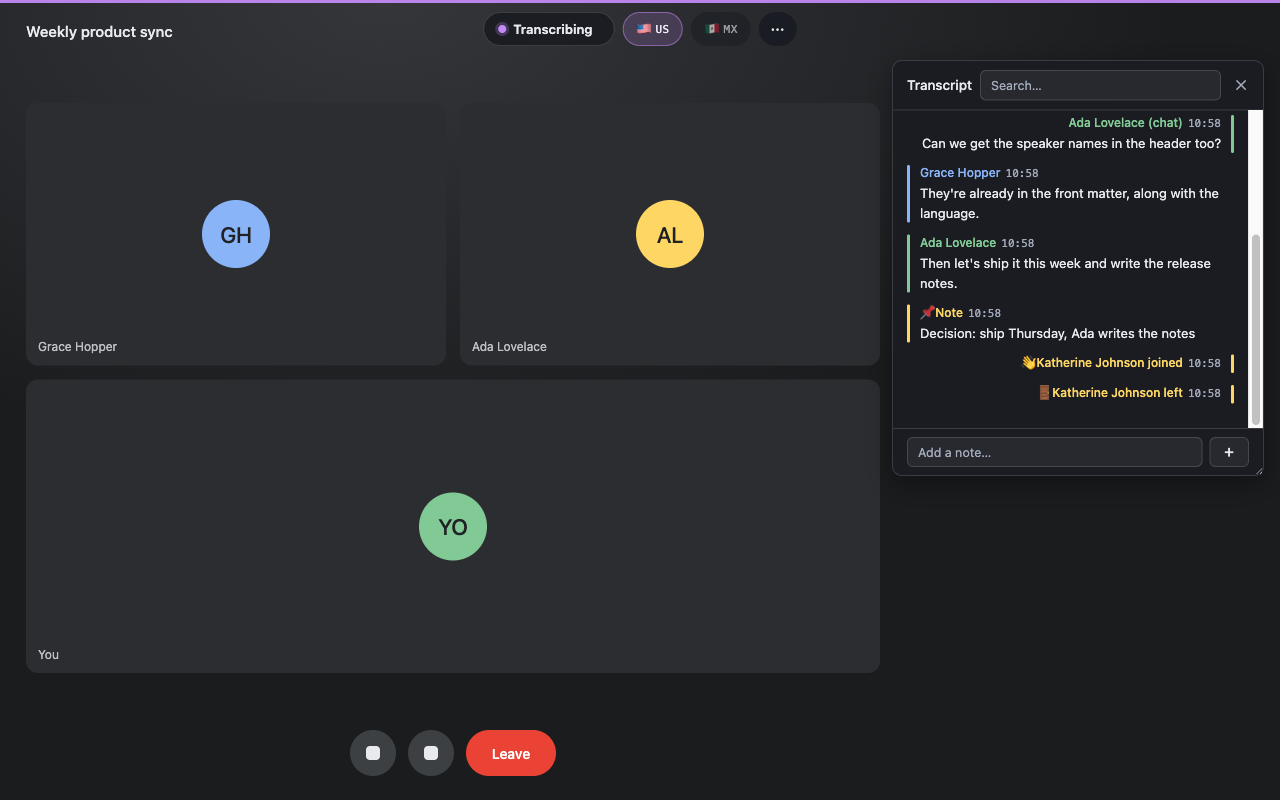
● Transcribingpill appears at the top of the call, and beside it a button for each language you pinned (🇺🇸 US,🇲🇽 MX), the current one lit. The language must match what is actually being spoken, otherwise the transcript comes out empty. Set your usual one once in Settings; a pinned button, or the full list under⋯, overrides a single call. - Talk. Capture runs from the moment you join; there is nothing to press. Meet's own on-screen caption band does not need to be turned on.
⋯then Show transcript to watch it build up live, if you want to.- Leave the call. The file is written to
Downloads/meetings/platica-notes/<meeting title> <date>.md.
If a meeting produced nothing (nobody spoke, or you wiped it), no file is written.
3. The controls inside the meeting
Two controls sit at the top of the meeting window, plus one button per language you
pinned. Everything else lives a click away behind ⋯, so what covers somebody's
face during a call is the state of capture, not a row of settings.
| Always on screen | What it does |
|---|---|
● Transcribing |
Capture is running: a violet dot while live, a grey square and the word Paused when it is not. Click to pause, click again to resume. It also carries a 🔒 while the meeting is marked private, so that state is visible without opening anything. Deliberately not a red pill with a ticking clock: this extension records no video and no audio, and it should not look like it does. The elapsed time is in the toolbar popup. |
🇺🇸 US 🇲🇽 MX |
One button per language you pinned in Settings, up to three, the current one lit. A click switches the transcription language for this meeting only. |
⋯ |
Everything else. |
Behind ⋯ |
What it does |
|---|---|
⬇️ Save the file now 128 turns |
Writes the transcript as it stands, without ending the meeting (section 7). The count on the right is what would go in the file; the row is greyed out until something has been captured. |
🌐 English (US) |
The full language list, for the meeting you did not see coming. |
📄 Show transcript / Hide transcript |
The live transcript panel (section 4). |
🔒 Mark private off |
Writes this meeting to the private folder instead. |
🗑 Wipe what was captured |
Throws away everything captured so far. Asks first. |
⌥⇧S ⌥⇧B ⌥⇧H |
The three keyboard shortcuts, named where the question comes up. |
The menu opens with the mouse or with the arrow keys, walks its rows with them, and closes with Escape, which puts the focus back where it was. Choosing something closes it.
Language
The single most common cause of an empty transcript is a language mismatch. Google generates captions for one language at a time, and if the extension is listening in English while the call is in Spanish, there is simply nothing to capture. Switching mid-sentence is fine: capture re-subscribes to the new language and keeps going.
If you move between the same two or three languages, pin them in Settings. Each one
gets its own flag button in the call, so switching is a single click rather than a
trip through a list of fourteen. Nothing is hidden by pinning: the full list stays
under ⋯.
If your calls are less predictable than that, turn on Ask language at meeting start in Settings. Each meeting then opens with a small prompt: keep the current language, pick another, or dismiss it. It never blocks capture, which is already running while it waits.
Pausing and resuming
● Transcribing is on when you join. Click the pill and everything new stops:
transcript, chat, join/leave markers, notes. Whatever was already captured is kept
and still saved when the meeting ends, and the off state survives a page reload, so
an accidental refresh does not silently start capturing you again.
Use it for the part of the call that should not exist in writing.
If you want to know how long it has been running, the toolbar popup says so. It is not on the pill in the meeting, where it read as a camera counting.
Wipe
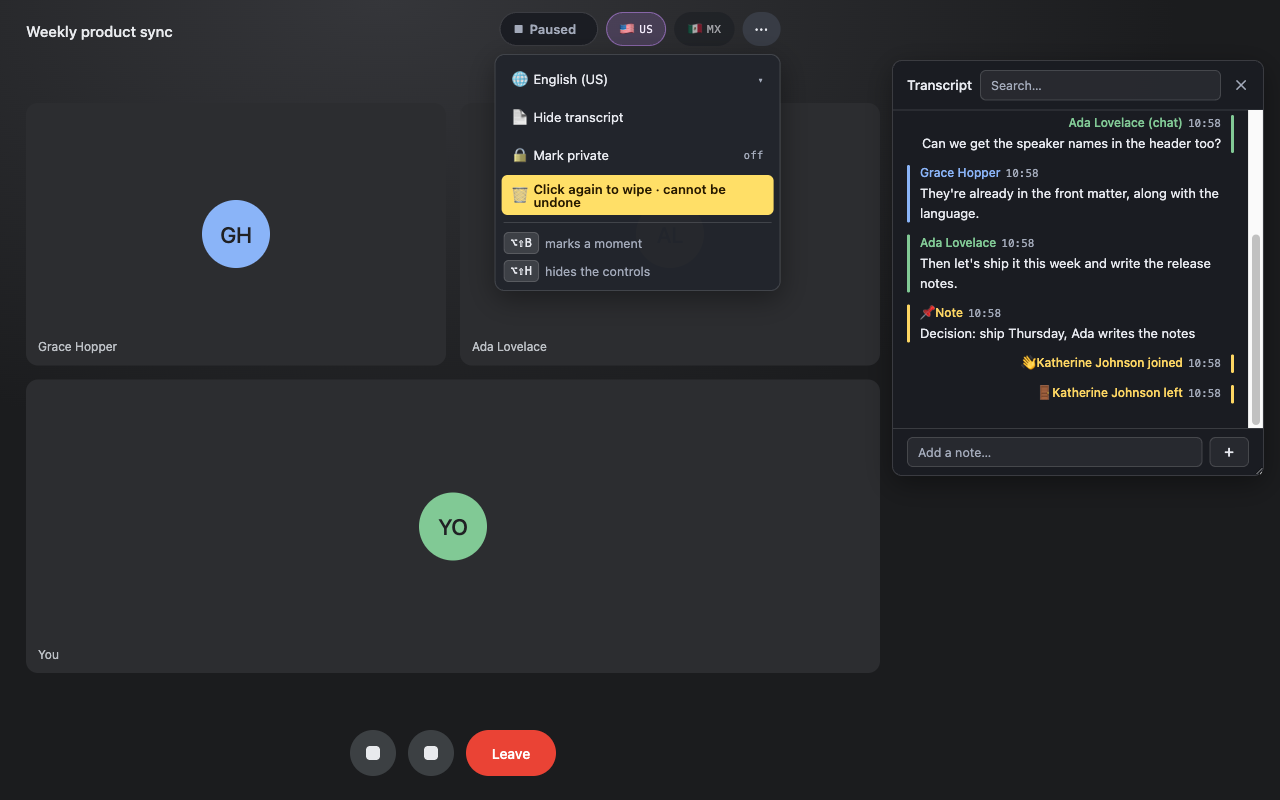
Wipe what was captured, under ⋯, throws away everything captured in the
current meeting so far. Click once to arm it (the row turns amber and reads Click again to wipe · cannot be undone), click again to confirm; if you do nothing it
disarms itself. If nothing is left afterwards, leaving the meeting writes no file at
all.
It sits in the menu rather than on the bar deliberately. It is the one control that destroys what has been captured, and it has no business one stray click away from the language buttons.
Wipe is per-meeting and immediate. It does not touch files already saved from earlier meetings; delete those from Downloads or from the history page.
Private meetings
Mark private, under ⋯, routes this meeting's file to a separate folder
(meetings/platica-notes-private by default) so you can keep it out of whatever you
sync to the cloud. A private meeting is also excluded from the diagnostic log
entirely, even when that log is switched on. While it is on, the Transcribing pill
carries a 🔒, so the menu does not have to be open for you to know.
If most of your calls are sensitive, set Private by default in Settings and use the menu for the exceptions.
Hiding everything
Alt+Shift+H (⌥⇧H on macOS) hides every element the extension draws: the
pill, the buttons, the panel, the confirmations. Capture keeps running. The same
toggle lives in the toolbar popup, and the shortcut is named in the ⋯ menu. Use it
before you share your screen. Press it again to bring the controls back.
4. The live transcript panel
Show transcript, under ⋯, opens a floating card with the meeting timeline as it
fills.
- Speaker turns appear on the left, each speaker in their own colour.
- Chat messages are aligned to the right, so a written message never looks like something that was said out loud.
- Join and leave markers (
👋 … joined,🚪 … left) also sit on the right, in the participant's colour. - Your notes appear inline where you added them.
Things worth knowing:
- Search. The box in the panel header filters the timeline as you type, matching both speaker names and text. Clear it to see everything again. Handy when someone asks "what did we decide about the invoice?" in the middle of a call.
- Move and resize. Drag the card by its header to get it out of the way of a shared screen; drag the bottom-right corner to resize it.
- Follow or read back. The panel sticks to the newest line while you are at the
bottom. Scroll up to read and it stops jumping; a
↓ Jump to latestbutton appears to take you back. - Notes. Type in the footer field and press Enter (or click
+). The note is timestamped at the moment you add it and lands on the timeline in context, both in the panel and in the saved file. - Bookmarks. Alt+Shift+B (⌥⇧B) drops a bookmark with no text: a marked
moment, for when you have no time to type. It becomes a
### Bookmarkblock in the file, so an assistant can be told to pay attention to what was said around it. - Links are clickable. A link somebody pastes into the meeting chat opens in a
new tab, never the current one, which would end the call. Only
httpandhttpslinks become clickable, nothing is prefetched or previewed, and the site you open is not told which meeting you came from.
Closing the panel with ✕ only hides it. Capture is unaffected.
5. Settings
The toolbar popup first
Click the extension's toolbar icon during a call and it answers the question you opened it to ask: whether capture is running and for how long, the meeting's title, the language, whether it is marked private, and the exact folder the file will land in. Between calls it names the last meeting it saved. It also carries the one control worth having in the moment, Hide the on-screen controls, and the way through to Meeting history, Settings and Help.
Everything configured once rather than mid-call lives in Settings.
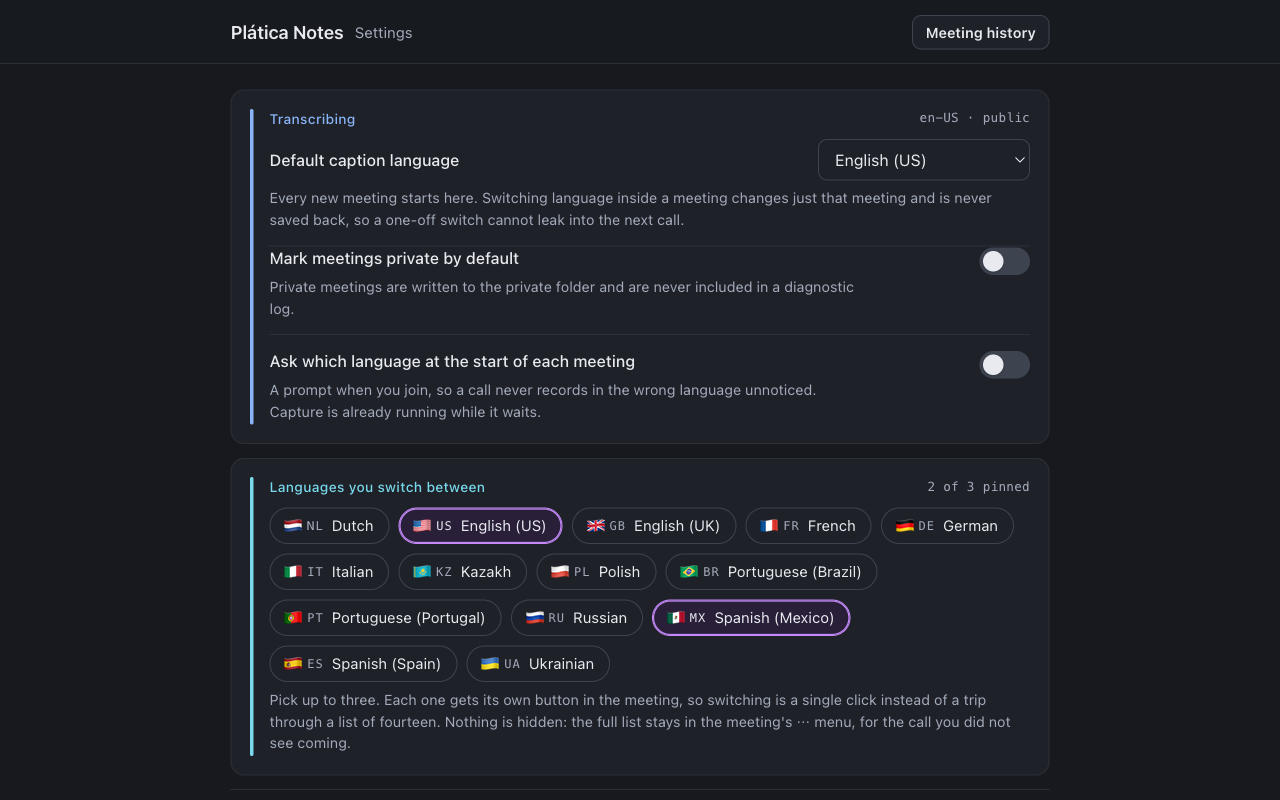
Each group on that page shows its current value on its own heading, so the whole configuration can be read without opening a single control, and every change says that it saved.
Transcribing
- Default caption language. Seeds every new meeting. Fourteen languages are available: Dutch, English (US/UK), French, German, Italian, Kazakh, Polish, Portuguese (Brazil/Portugal), Russian, Spanish (Mexico/Spain) and Ukrainian, listed in the same order Google Meet's own caption settings use. Fresh installs default to English (US). An in-meeting switch never writes back here, so a one-off cannot leak into your next call.
- Mark meetings private by default. New meetings start private.
- Ask which language at the start of each meeting (off by default). See section 3.
Languages you switch between
Pin up to three, and each one gets its own flag button inside the meeting. This is
the setting that makes the in-meeting bar worth having, and it is also offered on the
first-run page. Pinning hides nothing: the full list of fourteen stays under ⋯.
Where files go
Three paths, all relative to your browser's Downloads folder, the only place a
browser extension may write. Nested paths such as work/meetings are allowed, and
files are filed by month inside them. Each field previews the exact path the download
will use as you type, including when what you typed has to be rewritten, which used
to surface hours later as a file in an unexpected place.
| Setting | Default | Contents |
|---|---|---|
| Meetings | meetings/platica-notes |
Normal meeting transcripts |
| Private meetings | meetings/platica-notes-private |
Transcripts of meetings marked private |
| Diagnostic logs | meetings/platica-notes-logs |
Diagnostic logs, only when the debug log is on |
If you sync transcripts to the cloud, sync the meetings folder only. The private folder holds the meetings you deliberately kept out, and diagnostic logs embed the full transcript.
What lands in the file
- Keep the caption alternatives (on by default). Google rewrites its captions as
it hears more, and the final version sometimes drops words that an earlier version
had. With this on, each turn also carries those earlier versions as
↳ _alt:_lines, so a word lost from the final caption can still be recovered later, by you or by an assistant. Turn it off for a shorter, cleaner file. - Merge a rejoin into the same file (on by default). If you drop out and rejoin
the same meeting within 40 minutes, both visits end up in one file (with a
## Visit 2 · rejoined …heading) instead of two. A daily recurring call is never merged across days, and a private visit is never folded into a public file.
Meeting history
- Meetings kept in the extension (30 by default). How many meetings the history
page remembers. Once the list is full the oldest entry drops off, and what you lose
is the ability to re-download that meeting from the extension. The
.mdfiles already in your Downloads folder are never touched.
Troubleshooting
- Write a diagnostic log per meeting (off by default). Writes a
.jsonlfile per meeting beside the transcript, containing everything that was said plus decoding details. Only useful when reporting a capture problem. Private meetings are never logged. Turn it off when you are done.
6. Meeting history
The popup's Meeting history button opens a local list of your recent meetings, grouped by month, newest first.
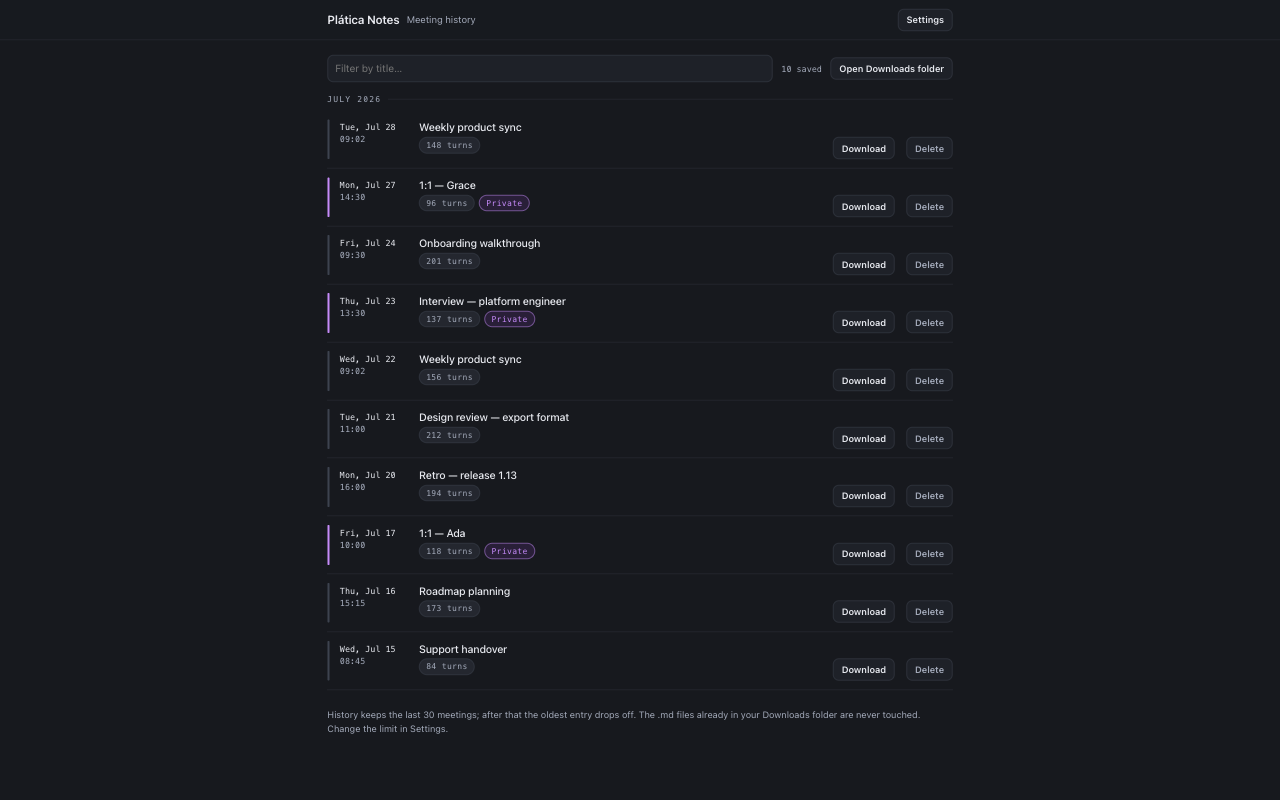
Each row shows when the meeting started, its title, how many turns were captured, the caption language, and a marker if it was private. The filter box at the top matches titles as you type, and Open Downloads folder takes you to the files themselves.
Download writes the .md again, which is the fix for a file you deleted by
accident or a download you dismissed, and it tells you where the file landed.
Delete removes the meeting from this local history; it does not delete a file
already in Downloads. The row goes immediately and an Undo stays available for
ten seconds, because a transcript that exists nowhere else in the extension deserves
a way back.
Diagnostics saves a small record of what capture did during that meeting: the channels it saw, whether the subscription went out, how many captions arrived. It holds no words, no names and no chat, so it is safe to hand to someone helping you, and it is kept for private meetings too, for the same reason. This is the file to send when something looked wrong (section 9).
A meeting that ran with other people in it and captured nothing at all still gets a
row, marked Nothing captured, with its diagnostics attached. It offers no
transcript download, because there is no transcript behind it. That row exists so a
failure leaves something to look at instead of vanishing.
How many meetings the list keeps is a setting (section 5), 30 by default. Everything on this page lives in your browser profile on this machine.
7. The saved file
The file has a YAML front matter header and a body of turns.
The header carries the meeting title, the Meet link, the chat link, the caption language, your time zone, the exact start and end times, who recorded it, and the participant list. Then a comment line records the extension version and the format schema, so a downstream tool can tell which grammar it is reading.
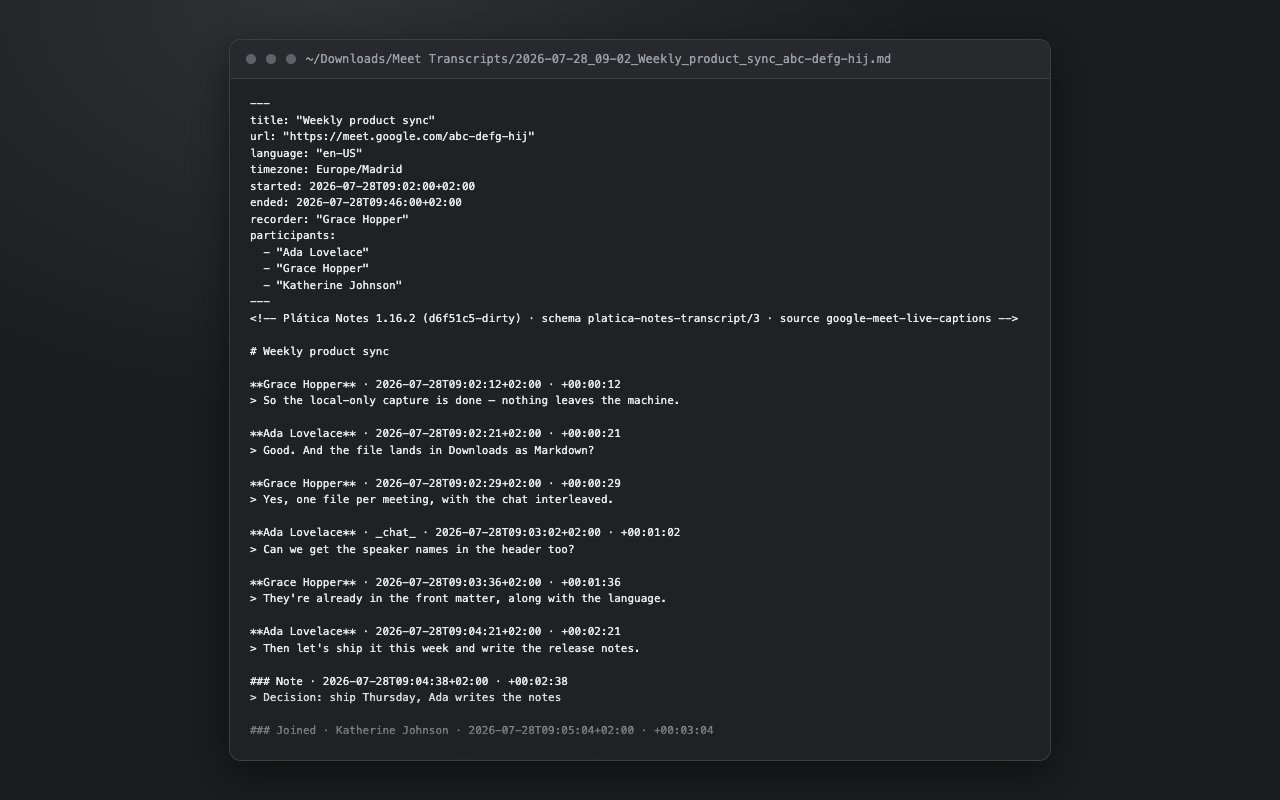
The body is one block per event, in chronological order:
| Block | Meaning |
|---|---|
**Name** · 09:02 · +00:12 |
A spoken turn. Clock time, then elapsed time from the start of the meeting. The text follows on a > line. |
**Name** · _chat_ · … |
A chat message rather than speech. |
**Speaker 3** · _unresolved_ · … |
Someone whose display name never arrived (see section 9). |
> ↳ _alt:_ … |
An earlier version of the caption above it, when caption alternatives are on. |
### Note · 09:04 · +02:38 |
A note you typed. |
### Bookmark · … |
A bookmark you dropped with Alt+Shift+B. |
### Joined · Name · … / ### Left · … |
Someone joined or left mid-meeting. |
## Visit 2 · rejoined … |
The start of a second visit, in a merged file. |
Saving before the meeting ends
You do not have to wait for the call to be over. ⬇️ Save the file now in the ⋯
menu, or ⌥⇧S, writes the file there and then.
It writes to the same file the finished meeting will write to, so you still get one file per meeting and it only ever grows. Save again later and it picks up everything said since; when you leave, the complete transcript replaces it. Leaving and rejoining the same call keeps writing to that one file rather than starting a second one.
While the meeting is still running the file says so, twice. The header carries
status: in-progress and a snapshot_at time instead of an end time, and the first
line of the body reads:
> **INCOMPLETE. This meeting is still running.** Captured up to 10:42:07,
> 00:41:12 in, 128 turns so far. This file is overwritten with the full
> transcript when the meeting ends.
Both are gone from the finished file. That is deliberate: a half-recorded meeting that reads like a finished one is worse than no file at all, and an assistant handed the file has to be able to tell which it is holding.
A meeting marked private saves into your private folder, exactly as it does at the end, and if you have the per-meeting diagnostic log switched on it is saved alongside.
Using it with an assistant
Drag the file into Claude, ChatGPT, or a local model and ask for what you actually need. Some prompts that work well:
- "From this transcript, write minutes: decisions, owners, deadlines. Quote the line each decision came from."
- "List only the action items assigned to me, with the context of each."
- "What did we agree about pricing? Ignore everything else."
- "Draft a follow-up email to the client summarising what we committed to."
- "Some turns have
↳ _alt:_lines with earlier caption versions. Where the final text looks garbled, use them to reconstruct the sentence."
Because the file is plain Markdown with an explicit schema, none of this depends on a particular model or vendor.
Saving mid-meeting (above) is what makes this work during a call rather than after
it: save, hand the file over, and ask what you missed while you were away from the
screen. If the assistant reads the file itself from your Downloads folder, it will
see the status: in-progress header and know the meeting is still going.
8. Privacy
- The extension makes no network requests of its own. No servers, no analytics, no telemetry, no accounts. There is no code in it that can send your transcript anywhere.
- Everything is stored on your machine: the files in Downloads, the recent-meeting history in your browser profile.
- The privacy flag is honoured on every output path: a meeting marked private goes to the private folder and is excluded from the diagnostic log.
- You can stop and erase: clicking the recording pill stops capture mid-call, Wipe what was captured throws away what has been captured, and a meeting with nothing captured produces no file.
- Uninstalling the extension removes its stored data. Files already in Downloads are yours and stay.
The published privacy policy is linked from the Chrome Web Store listing.
One thing that is on you: recording a meeting may require the consent of the other participants, depending on where you are. Tell them.
9. When something looks wrong
A notice says the extension is not recording speech. It appears when a meeting has been running for a while with speech arriving nowhere, which is worth knowing while there is still time to fix it rather than afterwards. The usual cause is a second meeting-recorder extension in the same tab: only one of them can read Meet's captions. It does not appear on a quiet call where nobody has spoken yet, and it takes itself back if recording turns out to be fine.
A notice says nothing has been captured, five minutes in. Different from the one above: here the extension did ask Meet for captions and none ever came back. Two things are worth checking, and the notice names both. The first is the caption language: if the call is in a language the extension is not listening for, nothing arrives. The second is the version. Google occasionally changes how Meet delivers captions, and a version that predates the change goes quiet without failing, which is exactly what this notice exists to break. Update the extension, and send the Diagnostics file from the history page if it keeps happening.
The file is empty, or there is no file at all. The caption language did not match what was spoken. Check the language buttons during the next call. Also check that somebody actually spoke: a meeting with no captured content writes no file by design.
A speaker is called "Speaker 2" instead of their name.
Names arrive from Meet's own roster, and in a very short call, or if you join late,
that data can be missing for someone. The transcript is still correct; only the label
is generic, and it is tagged _unresolved_ in the file so you can fix it afterwards.
Nothing was captured after I turned Meet's captions off (or on). That is handled: capture reads the meeting's data stream directly, and re-establishes it if Meet tears it down. If you do see a gap, that is worth reporting.
A banner says the extension was updated and I should rejoin. The browser replaced the extension while you were in a call, which cuts the running capture off from the part that saves files. Rejoin the meeting so the rest of it is recorded. What was captured before is not lost.
I refreshed the page mid-meeting.
Capture resumes and the meeting stays one file, and a paused recording stays paused.
Two things do not survive the refresh, and neither is the extension's doing: Meet
drops you out of the call, so you have to rejoin, and it does not re-send the list of
who is in the room afterwards, so people who speak for the first time after the
refresh may be named Speaker 2, Speaker 3 and so on rather than by name. Refresh
a call you are recording only if you have a reason to.
Two transcripts appeared for one meeting. Either you left and rejoined more than 40 minutes apart (they are separate meetings by then), or Merge a rejoin into the same file is off, or you have two copies of the extension installed: one from the store and one loaded unpacked. Two copies capture independently and both write files; remove one.
Reporting a problem. Start with Diagnostics on the history page (section 6). Every meeting keeps that record automatically, nothing has to be switched on beforehand, and it holds none of what was said, so you can send it for any meeting including a private one.
Only if that is not enough, turn on Write a diagnostic log per meeting in Settings and reproduce the problem. That second log is a different thing: it contains the full transcript of the meeting, so use a call you do not mind sharing and turn the setting off afterwards. Private meetings are never written to it.